Get 20% OFF All Premium 3D & STL Models!

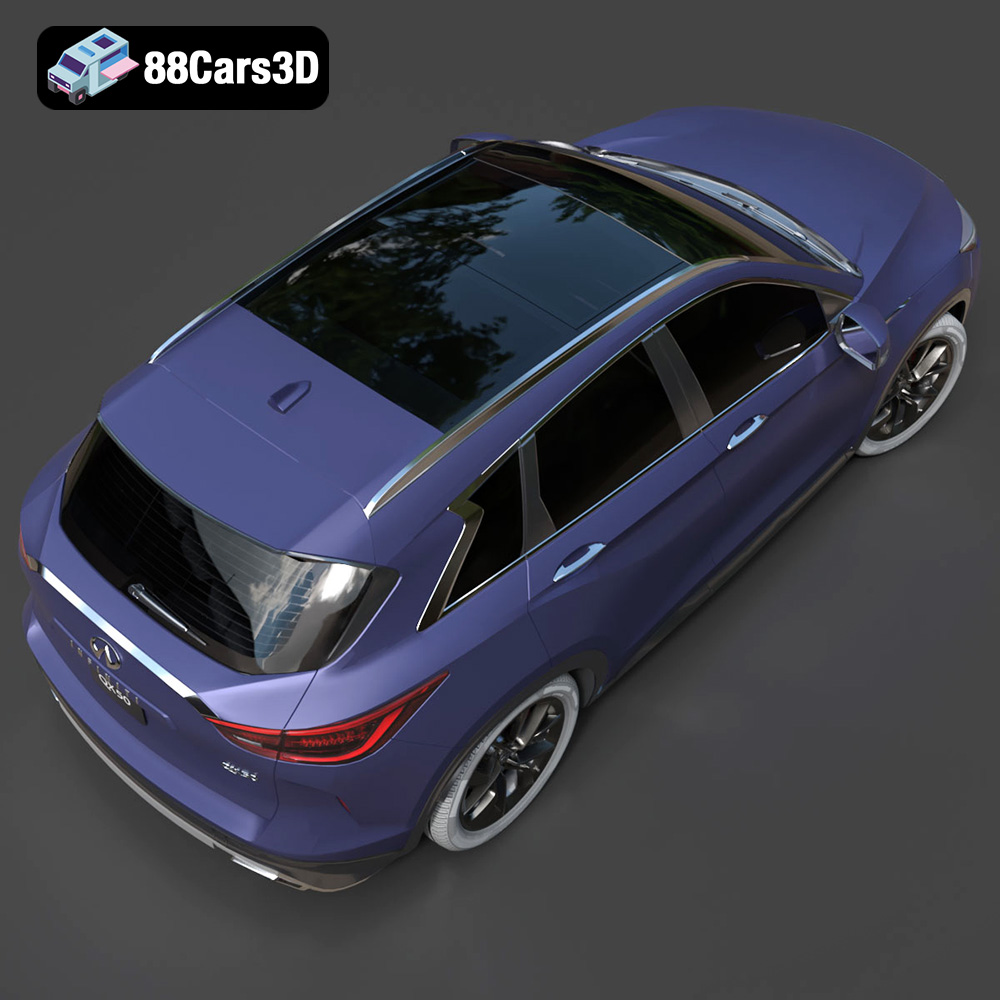
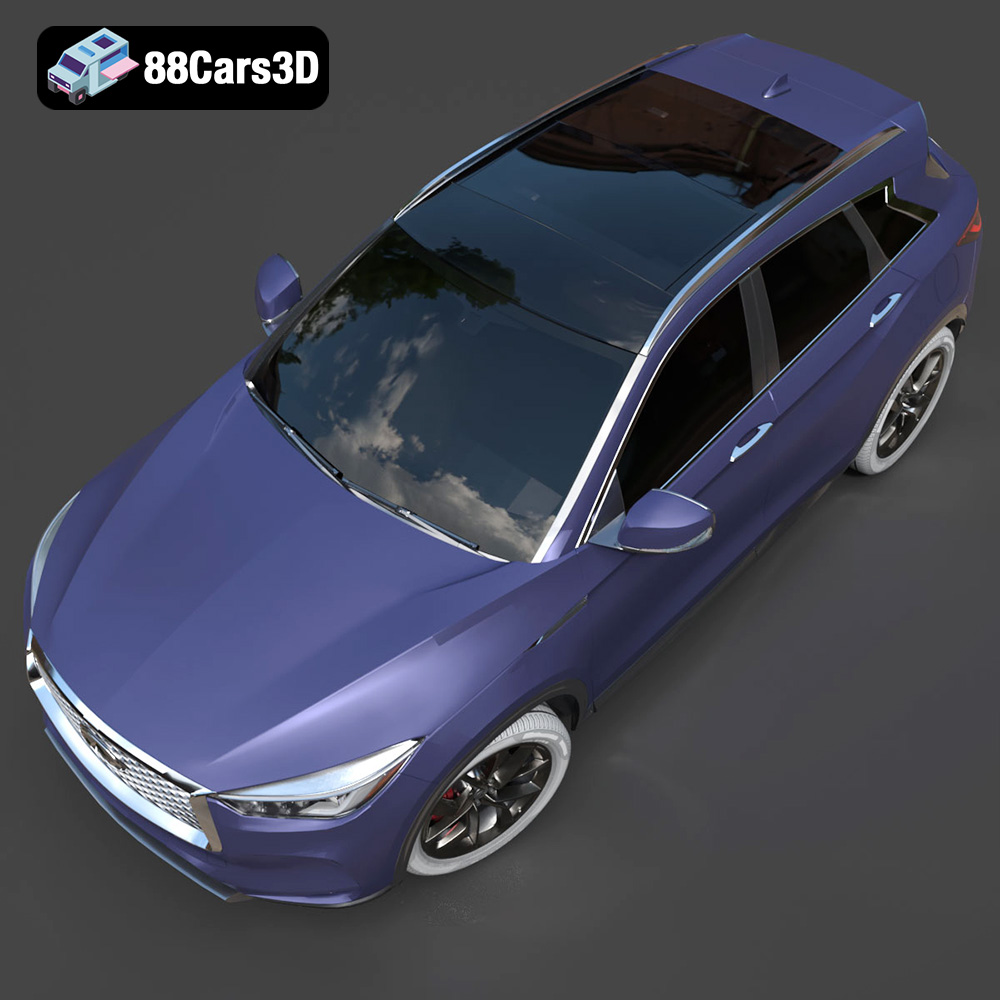
The Infiniti QX50 2019 is a masterclass in automotive design, blending luxury with performance in a captivating crossover SUV. Now, thanks to 88cars3d.com, you can bring this iconic vehicle to life through the magic of 3D printing. This comprehensive guide will walk you through every step of the process, from choosing the right materials and settings to perfecting the final finish of your 3D printed Infiniti QX50. Whether you’re a seasoned 3D printing enthusiast or a newcomer to additive manufacturing, this guide will provide the knowledge and techniques needed to achieve stunning results.
Before diving into the specifics of printing the Infiniti QX50, it’s crucial to understand the various file formats available and their implications for 3D printing. While 88cars3d.com provides a wide array of formats to cater to diverse applications, the .stl format reigns supreme for 3D printing.
The .stl (Stereolithography) format is the workhorse of 3D printing. It represents a 3D object’s surface geometry as a collection of triangles. This simplicity makes it universally compatible with slicing software and 3D printers. However, .stl files only store the mesh data, lacking information about color, texture, or materials. When preparing the Infiniti QX50 for 3D printing, the .stl file is your starting point. Ensure the .stl file is properly scaled and oriented within your slicing software before proceeding. Mesh quality is paramount with .stl files. A poorly designed or exported .stl can lead to print artifacts, weak points, or even printing failures. Look for watertight meshes (no holes), properly oriented normals (surfaces facing the correct way), and an appropriate level of detail for your desired print resolution.
The .obj format is more versatile than .stl, as it can store color and texture information in addition to the mesh data. This format can be useful if you plan to paint the 3D printed Infiniti QX50 and want to use the .obj file as a reference for color placement. However, for the actual 3D printing process, .stl is still preferred due to its simplicity and widespread compatibility.
The .ply format is known for its ability to capture high levels of detail and is often used in 3D scanning applications. While it can be used for 3D printing, it’s typically reserved for models with extremely intricate features where preserving every detail is critical. For the Infiniti QX50, the .stl format will likely provide sufficient detail for most printing applications.
The .blend file is the native file format for Blender, a popular open-source 3D modeling software. If you want to modify the Infiniti QX50 model before printing, the .blend file gives you complete control over the geometry, materials, and textures. You can use Blender to add custom details, simplify the model for faster printing, or create variations of the design. However, you’ll need to export the modified model as an .stl file before it can be used for 3D printing.
The .fbx format is primarily used for exchanging 3D models between different software applications, especially in game development. While it can store material information, it’s not directly used for 3D printing. The .fbx file of the Infiniti QX50 might be useful as a reference for painting the 3D printed model, but you’ll still need the .stl file for the actual printing process.
The .glb format is optimized for Augmented Reality (AR) and web-based visualization. It allows you to preview the Infiniti QX50 model in a real-world environment using your smartphone or tablet. This can be helpful for visualizing the size and scale of the model before you commit to 3D printing it.
Similar to the .blend format, the .max file is the native format for 3ds Max, another industry-standard 3D modeling software. If you prefer working with 3ds Max, you can use the .max file to modify the Infiniti QX50 model before exporting it as an .stl file for 3D printing.
The success of your Infiniti QX50 3D print hinges on selecting the appropriate 3D printing technology and materials. Two dominant technologies are Fused Deposition Modeling (FDM) and Stereolithography (SLA), each with its own strengths and weaknesses.
FDM printers work by extruding molten plastic filament layer by layer. They are generally more affordable and easier to maintain than SLA printers, making them a popular choice for hobbyists and professionals alike.
* **Material Selection:** For the Infiniti QX50, PLA (Polylactic Acid) is a good starting point due to its ease of use, biodegradability, and wide availability. However, for parts requiring higher strength and heat resistance, consider using PETG (Polyethylene Terephthalate Glycol) or ABS (Acrylonitrile Butadiene Styrene).
* **Printer Settings:**
* Layer Height: 0.1mm – 0.2mm (lower layer heights provide finer detail)
* Infill Density: 15-25% (adjust based on desired strength and weight)
* Print Speed: 40-60 mm/s (adjust based on material and printer capabilities)
* Support Structures: Enabled (essential for overhangs and complex geometries)
* Build Plate Adhesion: Brim or Raft (improves adhesion and prevents warping)
SLA printers use a laser to cure liquid resin layer by layer, resulting in parts with exceptional detail and smooth surfaces.
* **Material Selection:** Standard resin is a good option for prototyping and display models. For functional parts or those requiring higher strength, consider using engineering resins or tough resins.
* **Printer Settings:**
* Layer Height: 0.025mm – 0.05mm (extremely fine detail achievable)
* Exposure Time: Varies based on resin and printer (follow manufacturer recommendations)
* Support Structures: Enabled (crucial for proper part formation)
* Hollowing: Consider hollowing out the model to reduce resin consumption and print time.
Proper pre-print preparation is crucial for a successful 3D printing outcome. This involves using slicing software to convert the 3D model into instructions for the printer and optimizing the model for printing.
Popular slicing software options include Cura, Simplify3D, and PrusaSlicer. Each offers a range of features and settings to customize the printing process.
* **Importing and Scaling:** Import the Infiniti QX50 .stl file into your chosen slicing software. Ensure the model is scaled to the desired size. Consider the limitations of your printer’s build volume.
* **Orientation:** Optimizing the model’s orientation can significantly impact print time, support material usage, and surface quality. Experiment with different orientations to minimize overhangs and maximize build plate adhesion.
* **Support Generation:** Configure support structures to provide adequate support for overhangs and complex geometries. Pay close attention to support placement to avoid damaging delicate features during removal.
Before slicing, it’s essential to inspect the model for any errors or imperfections that could lead to printing problems.
* **Mesh Analysis:** Use your slicing software or a dedicated mesh repair tool (e.g., Meshmixer) to identify and fix any non-manifold edges, holes, or flipped normals.
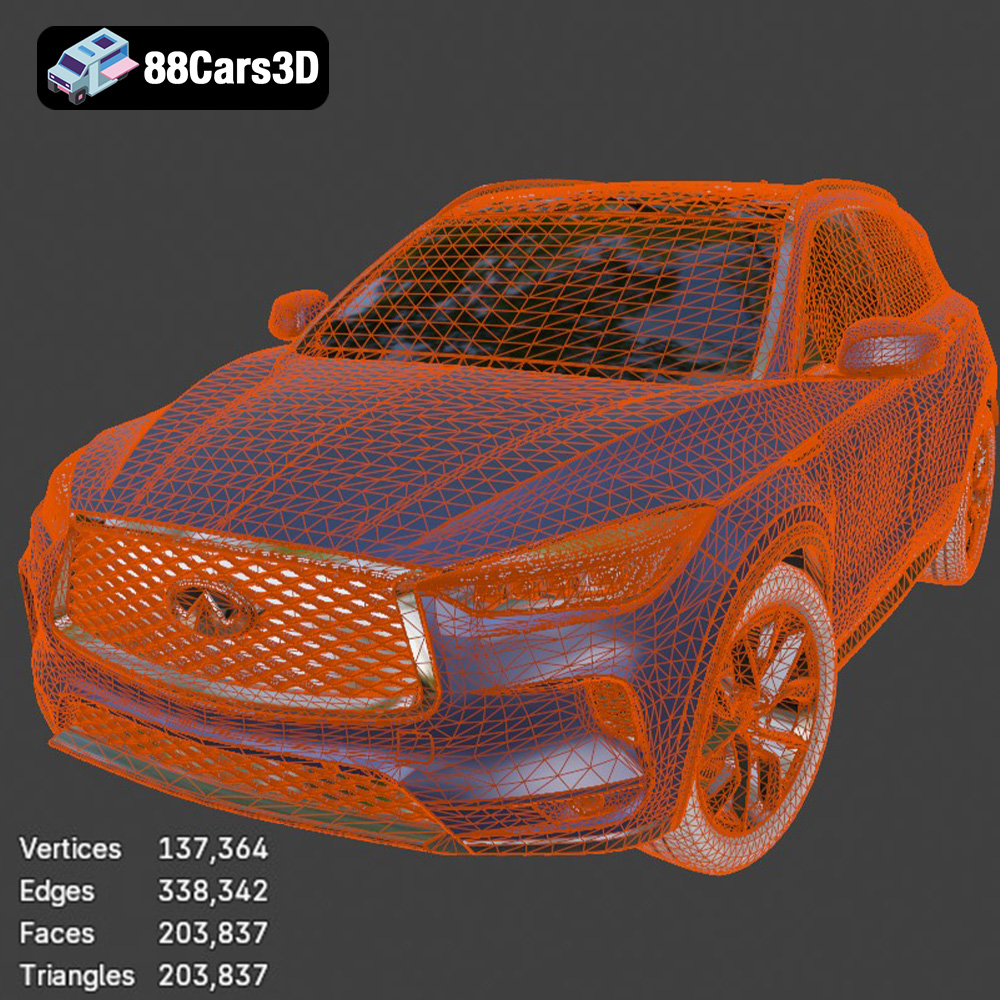
* **Decimation:** If the model has an excessively high polygon count, consider decimating it to reduce the file size and improve slicing performance. However, be careful not to decimate too much, as this can result in a loss of detail.
With the model prepared and the slicing parameters configured, it’s time to start printing the Infiniti QX50.
Consider printing the Infiniti QX50 in separate parts (e.g., body, wheels, interior) for easier assembly and improved surface finish.
* **Body:** Prioritize surface quality and detail. Use finer layer heights and slower print speeds.
* **Wheels:** Focus on strength and durability. Use higher infill densities and consider printing with a more robust material like PETG.
* **Interior:** If printing the interior, prioritize detail and accuracy.
Effective support structures are essential for printing complex geometries without failures.
* **Support Type:** Choose a support type that is easy to remove without damaging the printed part. Tree supports are a good option for intricate models.
* **Support Density:** Adjust the support density to provide adequate support without excessive material usage.
* **Support Placement:** Carefully consider the placement of support structures to minimize their impact on the final surface finish.
Closely monitor the printing process for any signs of problems.
* **Adhesion Issues:** If the print is not adhering to the build plate, try increasing the bed temperature, applying an adhesive (e.g., glue stick or hairspray), or using a brim or raft.
* **Warping:** Warping can occur with certain materials, especially ABS. To prevent warping, ensure the build plate is properly leveled, use an enclosure to maintain a consistent temperature, and increase the bed adhesion.
* **Stringing:** Stringing occurs when molten plastic oozes from the nozzle during travel moves. To reduce stringing, decrease the printing temperature, increase retraction distance, and adjust the travel speed.
Once the printing is complete, post-processing is required to remove support structures, smooth the surface, and assemble the parts.
Carefully remove support structures using pliers, cutters, or a sharp knife.
* **Gentle Approach:** Take your time and avoid applying excessive force, as this can damage delicate features.
* **Sanding:** Sand down any remaining support marks or imperfections using progressively finer grits of sandpaper.
Smoothing the surface of the 3D printed Infiniti QX50 can significantly enhance its appearance.
* **Sanding:** Sand the entire model with progressively finer grits of sandpaper, starting with a coarser grit to remove larger imperfections and finishing with a finer grit to create a smooth surface.
* **Priming:** Apply a primer coat to the model to create a uniform surface for painting.
* **Painting:** Paint the model using acrylic paints or spray paints. Consider using multiple coats for a more vibrant and durable finish. The .obj file from 88cars3d.com can be helpful as a color reference.
Assemble the printed parts using glue, screws, or other fasteners.
* **Dry Fit:** Before applying glue, dry fit the parts to ensure they fit together properly.
* **Adhesive Selection:** Choose an adhesive that is compatible with the material used to print the model.
The print time and material costs for the Infiniti QX50 will vary depending on the size of the model, the chosen printing technology, and the selected settings.
Use your slicing software to estimate the print time based on your chosen settings. Complex models with intricate details and high infill densities will take longer to print.
Calculate the material costs based on the amount of filament or resin used during the printing process.
To reduce print time and material costs, consider simplifying the model, using lower infill densities, and optimizing the orientation.
3D printing the Infiniti QX50 2019 model from 88cars3d.com is a rewarding project that combines technology and artistry. By understanding the intricacies of 3D printing technologies, materials, and pre- and post-processing techniques, you can create a stunning replica of this iconic vehicle. Remember to experiment with different settings and techniques to find what works best for your printer and desired results. Whether you’re a hobbyist, a designer, or an engineer, the world of 3D printing offers endless possibilities for bringing your ideas to life. With the high-quality STL files from 88cars3d.com, the possibilities are truly limitless. Happy printing!
Discover the exceptional realism and precision of the Infiniti QX50 2019 3D Model. Crafted with meticulous attention to detail, this premium digital asset accurately reflects the stunning aesthetics and sophisticated design of the renowned luxury crossover SUV.
$39.99
.2019
.arvr
.blend
.car3dmodel
.crossover
.fbx
.gameasset
.glb
.infiniti
.max
.obj
.ply
.qx50
.rendering
.simulation
.stl
.unreal
SUV