Get 20% OFF All Premium 3D & STL Models!

“`html
3D printing has revolutionized rapid prototyping and hobbyist projects alike, making it easier than ever to bring digital designs to life. However, not all STL files are created equal. STL files, the standard for 3D printing, can often contain imperfections, non-manifold geometry, or excessive complexity that can lead to printing failures. This is especially crucial when working with intricate models, such as the printable car models available on platforms like 88cars3d.com. Blender, a free and powerful open-source 3D creation suite, provides a robust set of tools for cleaning up and repairing STL files before sending them to your 3D printer. In this guide, we will delve deep into the process of preparing your STL files in Blender for optimal 3D printing results. You’ll learn about identifying common issues, using Blender’s tools to fix them, and ensuring your models are print-ready.
This comprehensive guide will cover importing STL files into Blender, navigating the interface, identifying and repairing common mesh errors (like non-manifold geometry, holes, and flipped normals), simplifying complex meshes, and exporting the cleaned-up STL file. We’ll also explore advanced techniques for optimizing your model for specific 3D printing processes and materials. By the end of this guide, you’ll be equipped with the knowledge and skills to confidently prepare your STL files in Blender, ensuring successful and high-quality 3D prints every time.
The first step is to import your STL file into Blender. Open Blender and delete the default cube object. Then, navigate to “File” -> “Import” -> “STL (.stl)”. Select your STL file and click “Import STL”. Once imported, the model might appear small or large depending on the scale it was created in. Use the scroll wheel to zoom in and out, and hold the middle mouse button to rotate the view. Use the ‘G’, ‘R’, and ‘S’ keys for grabbing (moving), rotating, and scaling the object respectively.
Blender’s interface can seem daunting at first, but understanding the basic navigation is essential. The main viewport is where you interact with the 3D model. The Properties panel on the right contains various settings for the selected object, including modifiers, materials, and rendering options. The Outliner panel on the top right shows the scene’s hierarchy of objects. The bottom panel offers various modes, like Object Mode, Edit Mode, and Sculpt Mode. Switching to Edit Mode is crucial for modifying the mesh data of your STL file.
Before making any changes, it’s important to identify any potential issues with the STL file. Switch to Edit Mode by selecting the object and pressing ‘Tab’ or selecting it from the mode dropdown menu. Turn on “Backface Culling” in the viewport options (located under the “Viewport Overlays” dropdown) to easily spot flipped normals (faces pointing inwards instead of outwards). Also, under the “Mesh Display” options in the Object Data Properties tab (the green triangle icon), enable “Normals” to visualize the normals of each face. Look for areas where the normals are pointing in the wrong direction, indicating potential problems. Overlapping faces and non-manifold geometry are more difficult to spot visually and require specific tools which we will cover later.
Non-manifold geometry is a common issue in STL files and can cause significant problems during 3D printing. Non-manifold edges are edges that are shared by more than two faces or no faces at all, creating areas where the mesh is not properly connected. Blender provides several tools to identify and fix non-manifold geometry.
In Edit Mode, go to “Select” -> “Select All by Trait” -> “Non Manifold”. This will highlight all the non-manifold edges and vertices in your mesh. Examine these areas closely. Common causes of non-manifold geometry include overlapping faces, internal faces, and disconnected components. Once selected, you can use various tools to address these issues. Often times, models downloaded from the internet can contain these issues. When downloading models from marketplaces such as 88cars3d.com, you can expect high-quality, print-ready models that minimize these issues.
For overlapping faces, try selecting the problematic faces and deleting them (press ‘X’ and choose “Faces”). For internal faces, which are faces inside the model that shouldn’t be there, use the same approach. If you find disconnected components, you can try bridging the gaps between them by selecting the edge loops surrounding the gap and using the “Bridge Edge Loops” tool (Ctrl+E -> “Bridge Edge Loops”). Sometimes, the best solution is to manually rebuild the problematic areas using Blender’s modeling tools, such as creating new faces by selecting vertices and pressing ‘F’. Always double-check your work after each fix by re-running the “Select Non Manifold” tool.
Holes and gaps in the mesh are another common problem that can lead to printing failures. These gaps prevent the slicer from properly generating toolpaths, resulting in missing sections in the final print. Blender offers several methods for closing these holes, depending on their size and complexity.
For small holes with a well-defined boundary, the “Fill” tool is often the simplest solution. Select the edge loop surrounding the hole by Alt+clicking on an edge. Then, press ‘F’ to fill the hole with a new face. If the resulting face has incorrect normals, select it and press Shift+N to recalculate the normals outwards.
For larger or more irregularly shaped gaps, you might need to use the “Bridge Edge Loops” tool. Select two opposing edge loops along the gap, and then press Ctrl+E -> “Bridge Edge Loops”. This will create a series of faces connecting the two edge loops. You might need to adjust the number of cuts and other settings in the Bridge Edge Loops panel (located in the bottom-left corner of the viewport) to achieve the desired result. Another helpful tool is the “Grid Fill” tool (Ctrl+F -> “Grid Fill”), which attempts to fill a selection with a grid-like pattern. This works best for relatively square or rectangular holes.
Highly detailed STL files can be computationally expensive to process, both in Blender and in your 3D printer’s slicer software. Simplifying complex meshes can significantly reduce file size and improve performance without sacrificing too much visual detail. Blender provides several tools for reducing the polygon count of a mesh.
The “Decimate” modifier is the primary tool for simplifying meshes in Blender. In Object Mode, select the object and go to the “Modifiers” tab in the Properties panel (the blue wrench icon). Click “Add Modifier” and choose “Decimate”. The Decimate modifier offers several different methods for reducing the polygon count. The “Collapse” method is the simplest, allowing you to specify a ratio or a number of faces to remove. The “Unsubdivide” method is useful for reversing subdivision operations. The “Planar” method preserves planar surfaces while simplifying curved areas. Experiment with different methods and settings to find the best balance between simplification and detail preservation.
When using the Decimate modifier, it’s important to preserve the essential details of your model. Use the “Protect Boundaries” option to prevent the decimation from affecting the edges of the model. Also, consider applying the Decimate modifier in stages, starting with a small reduction in polygon count and gradually increasing it until you achieve the desired level of simplification. Avoid over-simplifying the mesh, as this can lead to a loss of important features and a decrease in print quality. The key is to find the sweet spot where the model is simplified enough to improve performance without sacrificing visual fidelity. High quality models available on platforms like 88cars3d.com are already optimized for printing, minimizing the need for excessive simplification.
Print orientation significantly impacts print quality, strength, and the amount of support material needed. Choosing the right orientation can minimize overhangs, reduce the visibility of layer lines, and improve the overall structural integrity of the printed part. Blender doesn’t directly generate support structures, but it’s crucial to plan for them during the preparation phase.
Analyze your model to identify areas with significant overhangs (parts that are unsupported by lower layers). Rotate the model in Blender to find an orientation that minimizes the need for supports in critical areas, such as detailed features or functional surfaces. Consider the aesthetic impact of layer lines. Orient the model so that the most visible surfaces are parallel to the build plate, which will result in smoother surface finishes in those areas. If strength is a concern, orient the model so that the layers are aligned with the direction of the applied force.
While Blender doesn’t generate supports, you can use it to identify areas that will require support material. These areas are typically overhangs greater than 45 degrees. You can then use your slicer software (such as Cura or PrusaSlicer) to automatically generate supports in those areas. Alternatively, you can manually create custom supports in Blender using basic modeling tools and then export them along with the main model as a single STL file. This approach gives you more control over the placement and design of the supports, allowing you to optimize them for specific printing needs. Consider using support blockers in your slicer to prevent supports from generating in areas where they are not needed, such as inside hollow cavities.
Once you have cleaned up and optimized your STL file in Blender, the final step is to export it in a format suitable for 3D printing. Ensure you’ve applied any necessary modifiers before exporting. Applying modifiers makes the changes permanent to the mesh. Leaving modifiers unapplied will only export the original, unmodified mesh.
Go to “File” -> “Export” -> “STL (.stl)”. In the export settings, make sure the “Selection Only” checkbox is unchecked if you want to export the entire scene. Check the “Apply Modifiers” box to apply all modifiers to the mesh before exporting. Choose a filename and location for the exported STL file and click “Export STL”. It’s generally recommended to use binary STL format, as it results in smaller file sizes compared to ASCII STL format.
After exporting, it’s a good practice to import the exported STL file back into Blender or another 3D viewing software to verify that the export was successful and that the model is still intact. Look for any unexpected changes or errors in the mesh. This step can help you catch any potential problems before sending the file to your slicer software. Finally, open the STL file in your slicer software and inspect it thoroughly to ensure that it is properly prepared for 3D printing. Check for any remaining errors, such as non-manifold geometry or holes, and adjust your slicer settings accordingly. Remember to choose appropriate settings based on your printer capabilities (FDM vs Resin), your material choice (PLA, PETG, ABS), and the desired printing quality. Properly prepared STL files significantly improve the chances of a successful print.
Cleaning up STL files in Blender is an essential step in the 3D printing workflow, especially when working with intricate models like printable car models. By following the techniques outlined in this guide, you can identify and fix common mesh errors, simplify complex geometries, optimize print orientation, and prepare your STL files for successful 3D printing. Remember to carefully inspect your models, use Blender’s tools effectively, and verify your work at each stage of the process. With practice and attention to detail, you can master the art of STL file preparation and achieve high-quality 3D prints every time.
Take the time to practice these techniques with various STL files. Experiment with different settings and approaches to find what works best for your specific printing needs. Don’t be afraid to explore Blender’s other features and functionalities to further enhance your 3D modeling and printing skills. Now that you understand the intricacies of preparing STL files, explore online marketplaces like 88cars3d.com for high-quality printable car models and put your new skills to the test. Happy printing!
“`

Texture: Yes | Material: Yes
Download the highly detailed, game-ready Ducati 1299 Panigale S 2017 3D Model. Features signature aerodynamic fairings, detailed Superquadro engine components, and aggressive Italian styling. Includes .blend, .fbx, .obj, .glb, .stl, .ply, .unreal, and .max formats for game development, AR/VR, and rendering.
Price: $19.99
Texture: Yes | Material: Yes
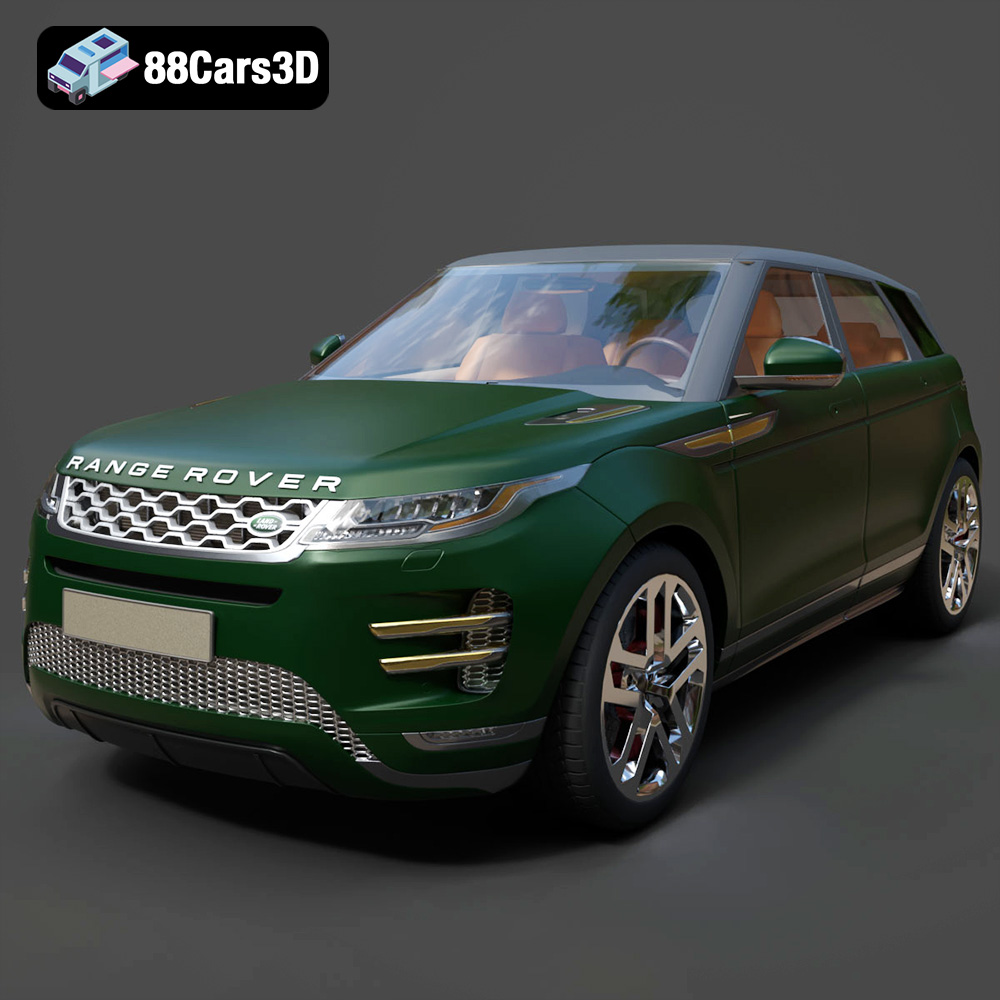
Download the highly detailed, game-ready Range Rover Evoque R-Dynamic 2019 3D Model. Features flush deployable door handles, Matrix LED headlights, and R-Dynamic styling. Includes .blend, .fbx, .obj, .glb, .stl, .ply, .unreal, and .max formats for game development, AR/VR, and rendering.
Price: $19.99

Texture: Yes | Material: Yes
Download the highly detailed, game-ready Ford Mustang Mach 40 3D Model. Features aggressive custom widebody styling, a mid-mounted V8 engine, and classic retro-futuristic design. Includes .blend, .fbx, .obj, .glb, .stl, .ply, .unreal, and .max formats for game development, AR/VR, and rendering.
Price: $19.99
Texture: Yes | Material: Yes
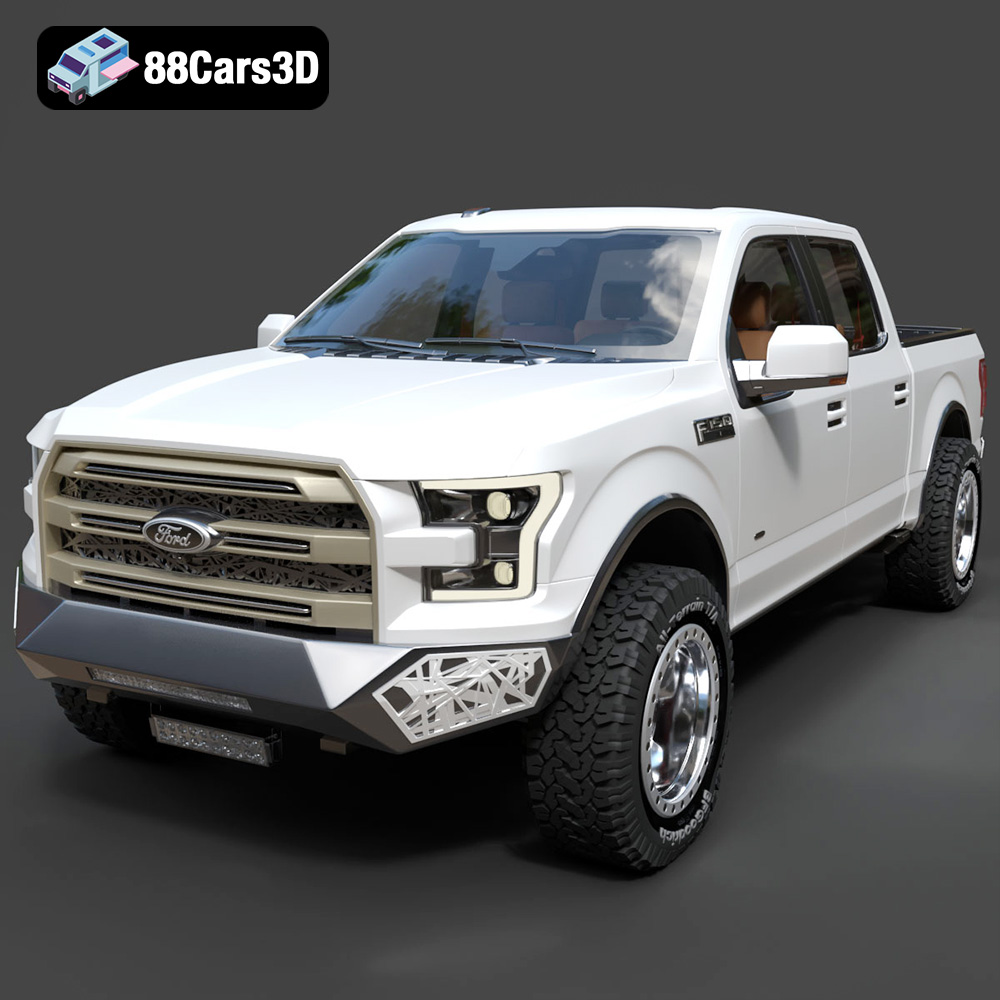
Download the highly detailed, game-ready Ford F150 Raptor With Tuning From ARE 3D Model. Features custom ARE tuning accessories, aggressive off-road suspension, and rugged beadlock wheels. Includes .blend, .fbx, .obj, .glb, .stl, .ply, .unreal, and .max formats for game development, AR/VR, and rendering.
Price: $19.99

Texture: Yes | Material: Yes
Download the highly detailed, game-ready Mercedes-Benz AMG GLE 63 2021 3D Model. Features the iconic Panamericana grille, aggressive aerodynamic body styling, and a meticulously detailed luxurious interior. Includes .blend, .fbx, .obj, .glb, .stl, .ply, .unreal, and .max formats for game development, AR/VR, and rendering.
Price: $19.99
Texture: Yes | Material: Yes
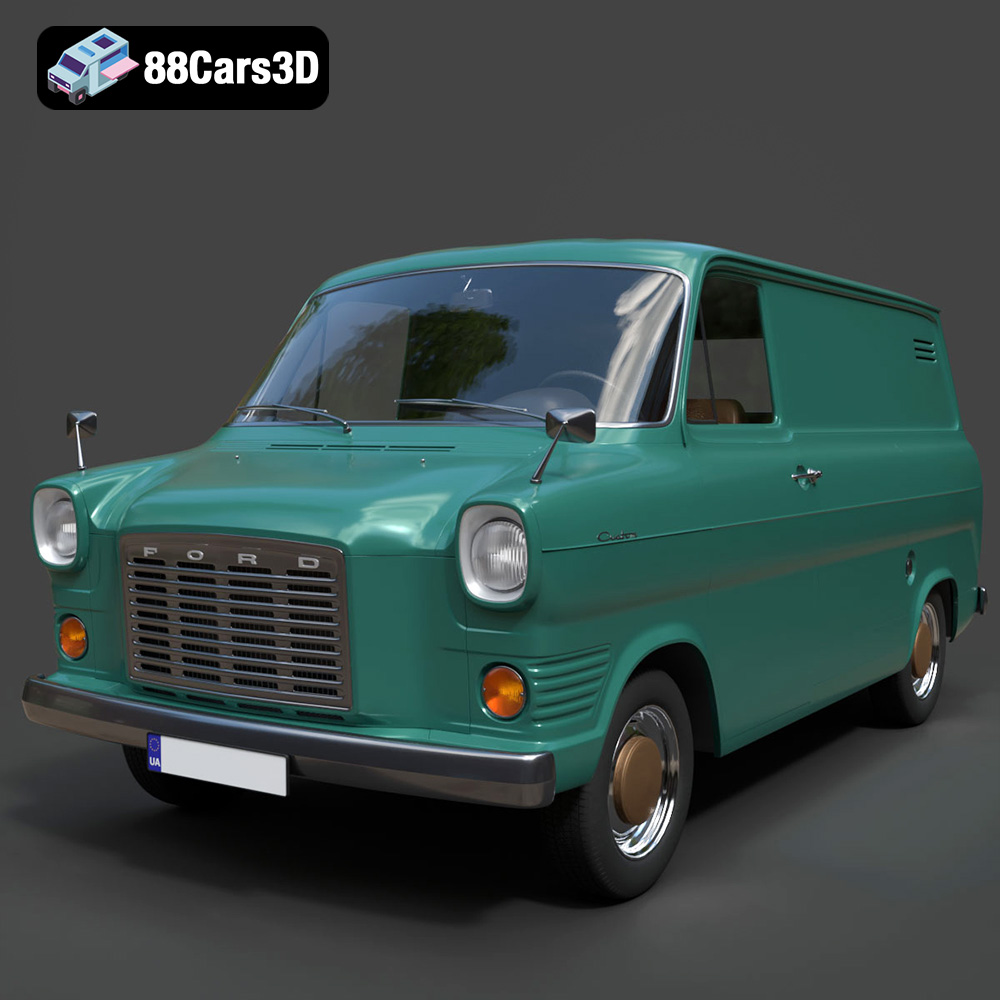
Download the highly detailed, game-ready Ford Transit Mk1 Panel Van 1965 3D Model. Features iconic flat-front styling, vintage steel wheels, and a period-correct cargo bay. Includes .blend, .fbx, .obj, .glb, .stl, .ply, .unreal, and .max formats for game development, AR/VR, and rendering.
Price: $19.99

Texture: Yes | Material: Yes
Download the highly detailed, game-ready BMW X3 2024 3D Model. Features the iconic kidney grille, dynamic SUV proportions, and precise lighting elements. Includes .blend, .fbx, .obj, .glb, .stl, .ply, .unreal, and .max formats for game development, AR/VR, and rendering.
Price: $19.99

Texture: Yes | Material: Yes
Download the highly detailed, game-ready Tesla Model S Plaid 2021 3D Model. Features sleek aerodynamic styling, signature LED lighting, and the revolutionary Yoke steering interior. Includes .blend, .fbx, .obj, .glb, .stl, .ply, .unreal, and .max formats for game development, AR/VR, and rendering.
Price: $19.99

Texture: Yes | Material: Yes
Download the highly detailed, game-ready Rolls-Royce Ghost EWB 2018 3D Model. Features the iconic Pantheon grille, elongated luxury chassis, and elegant exterior lines. Includes .blend, .fbx, .obj, .glb, .stl, .ply, .unreal, and .max formats for game development, AR/VR, and rendering.
Price: $19.99
Texture: Yes | Material: Yes
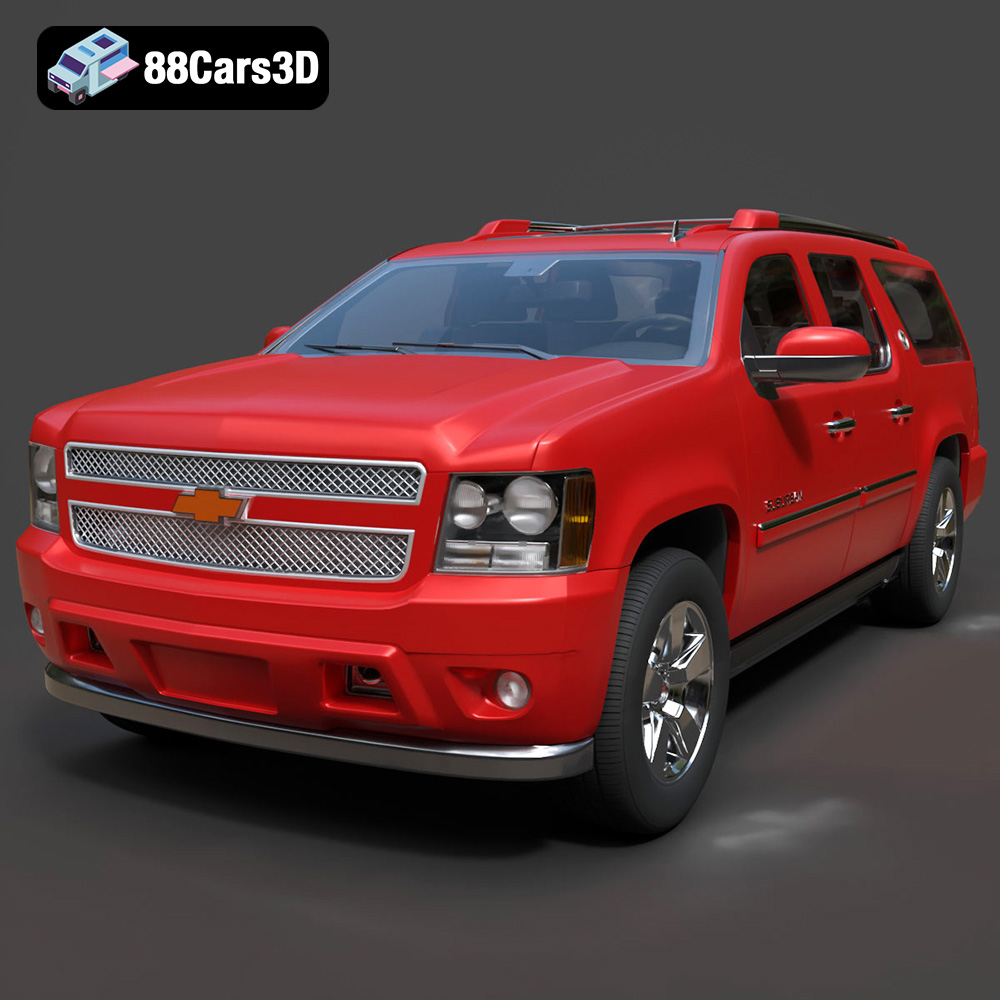
Download the highly detailed, game-ready Chevrolet Suburban 75th Diamond 3D Model. Features the iconic Diamond Edition styling, detailed interior, and accurate full-size SUV proportions. Includes .blend, .fbx, .obj, .glb, .stl, .ply, .unreal, and .max formats for game development, AR/VR, and rendering.
Price: $19.99

