Get 20% OFF All Premium 3D & STL Models!

“`html
3D printing offers incredible possibilities for automotive enthusiasts and model makers, allowing you to bring your dream cars to life in stunning detail. However, printing large 3D car models in one go can be challenging due to printer size limitations, warping issues, and excessive support material. The solution? Splitting your model into smaller, more manageable parts. This comprehensive guide will walk you through the entire process, from preparing your STL files to optimizing them for printing and ensuring a seamless assembly. Whether you’re a seasoned 3D printing veteran or just starting out, mastering the art of splitting and assembling models will significantly expand your printing capabilities, especially when dealing with detailed printable car models found on platforms like 88cars3d.com. You’ll learn about the best software tools, slicing techniques, and post-processing tips to achieve professional-quality results. This guide covers both FDM and resin printing approaches, ensuring you have the knowledge to tackle any project.
Before you even think about splitting your 3D car model, it’s crucial to ensure your STL file is clean, manifold, and ready for manipulation. A faulty STL file can lead to slicing errors and print failures. Think of it as prepping the canvas before an important art project. This step is critical no matter where you get your STL files, but particularly important if you’re modifying existing models or combining parts from different sources. Remember, when downloading models from marketplaces such as 88cars3d.com, you’re often starting with a high-quality, print-ready file, but checking it is always a good practice.
Use software like MeshLab, Netfabb, or Meshmixer to identify and repair any errors in your STL file. Look for non-manifold edges, holes, and flipped normals. Netfabb’s automatic repair tools are particularly effective. Even if the software reports no errors, visually inspect the mesh in a slicer preview. You can also reduce the polygon count of the model if it’s overly detailed, which can improve slicing performance without significantly affecting print quality. Aim for a balance between detail and file size. A good starting point is to reduce the mesh by 20-30% using a decimation algorithm.
Carefully analyze your 3D car model to determine the best locations for splitting. Consider existing panel lines, natural breaks in the design, or areas that will be hidden after assembly. Think about how the printed parts will be oriented and supported during printing. Minimize splitting across complex curves or areas that require high precision for alignment. For example, you might split the body along the roofline, door seams, or the front and rear bumpers. Aim for clean, straight cuts where possible. Another approach is to separate the chassis, body, wheels, and interior components into distinct pieces for easier handling and painting.
Several software options are available for splitting 3D models, each with its own strengths and weaknesses. Your choice will depend on your experience level, budget, and the complexity of the model. Free options like Meshmixer offer a good starting point, while professional software like Blender or Fusion 360 provide more advanced capabilities. It’s important to learn the basic workflow of at least one of these tools to effectively prepare your models for printing. Regardless of the software, the principle remains the same: create a cutting plane or object that intersects the model, separating it into distinct parts.
Meshmixer is a free and user-friendly option for basic model splitting. Use the “Plane Cut” tool to create a cutting plane. Adjust the plane’s position and orientation until it aligns with your desired splitting location. You can choose to “Fill Cut” to create flat surfaces on the cut parts, or leave it open. Meshmixer also allows you to add connectors or alignment keys to the cut surfaces for easier assembly. After cutting, export each part as a separate STL file.
Blender is a powerful, open-source 3D modeling software that offers more advanced splitting capabilities. You can use boolean operations to subtract cutting objects from your model, creating complex cuts and interlocking parts. For example, you can create a custom cutting tool shaped like a keyway to ensure perfect alignment during assembly. Blender’s sculpting tools are also useful for smoothing out cut surfaces and adding details. The learning curve is steeper than Meshmixer, but the flexibility is unmatched. You can create complex internal structures within the model that would be impossible to achieve with simpler tools.
Once you’ve split your model into parts, the next step is to optimize the slicing parameters for each individual piece. This is where your 3D printing expertise comes into play. The goal is to find the sweet spot between print quality, speed, and material usage. This includes considering the orientation, layer height, infill density, and support structure settings for each part, taking into account its specific geometry and function within the overall model. Getting this right is vital for achieving a high-quality finished product. Remember that the optimal settings can vary greatly depending on the material you’re using (PLA, ABS, PETG, or resin).
A smaller layer height (e.g., 0.1mm) will result in a smoother surface finish, but it will also increase print time. A larger layer height (e.g., 0.2mm) will print faster but may sacrifice some detail. Experiment to find the optimal balance for each part. For example, parts with visible surfaces might benefit from a smaller layer height, while internal structural parts can be printed with a larger layer height to save time. Similarly, adjust the print speed based on the complexity of the part. Slower speeds generally improve print quality, especially for overhangs and fine details.
Carefully consider the placement and type of support structures needed for each part. Use slicer software like Cura or PrusaSlicer to generate supports automatically, but then manually adjust them to minimize material usage and simplify removal. Consider using tree supports, which are more efficient and easier to remove than traditional linear supports. Pay close attention to the support interface layer, which determines the adhesion between the support and the part. Adjust the interface density and thickness to find a balance between support strength and ease of removal. A good practice is to use a support blocker to prevent supports from generating on surfaces that will be visible after assembly.
Choosing the right material is crucial for the success of your 3D printed car model project. The ideal material will depend on factors such as the desired level of detail, strength, flexibility, and heat resistance. For hobbyist projects, PLA is a popular choice due to its ease of use and biodegradability. However, for functional parts or models that will be exposed to higher temperatures, materials like ABS or PETG may be more suitable. Resin printing offers exceptional detail but often requires more post-processing and is generally less durable than FDM-printed parts. Understanding the properties of each material is essential for making informed decisions.
PLA is an excellent choice for beginners due to its low printing temperature, minimal warping, and wide availability. However, it’s not very heat resistant and can become brittle over time. ABS offers higher heat resistance and durability but requires a heated bed and enclosure to prevent warping. PETG combines the best of both worlds, offering good strength, heat resistance, and ease of printing. It’s a good all-around option for many 3D printing projects. When using ABS, consider increasing the bed temperature to 100-110°C and the nozzle temperature to 230-240°C. For PETG, a bed temperature of 70-80°C and a nozzle temperature of 235-245°C are generally recommended.
Resin printing excels at producing highly detailed parts with smooth surfaces, making it ideal for intricate car models. However, resin prints are generally more brittle than FDM prints and require careful post-processing, including washing and curing. There are many types of resin available, each with its own properties. Standard resins are affordable and easy to use, while tough resins offer increased strength and impact resistance. Flexible resins can be used for tires or other parts that require some give. When using resin, follow the manufacturer’s recommendations for exposure time and curing time. Always wear gloves and eye protection when handling resin.
After printing all the individual parts, the final step is to assemble and post-process your 3D printed car model. This involves removing support structures, sanding the surfaces, gluing the parts together, and applying any desired finishes, such as painting or clear coating. Patience and attention to detail are key to achieving a professional-looking result. Carefully planned splitting locations and connection methods will significantly simplify this process. A well-executed assembly and post-processing can transform a collection of individual parts into a stunning replica of your favorite car.
Carefully remove the support structures using pliers, a hobby knife, or a deburring tool. Be gentle to avoid damaging the part’s surface. After removing the supports, sand the surfaces to smooth out any imperfections and layer lines. Start with a coarse grit sandpaper (e.g., 220 grit) and gradually move to finer grits (e.g., 400, 600, 800 grit). Wet sanding can help to reduce dust and improve the surface finish. For resin prints, use isopropyl alcohol (IPA) to clean the parts after support removal and before curing. A sonic cleaner can be helpful for removing resin from hard-to-reach areas.
Use a strong adhesive, such as super glue or epoxy, to bond the parts together. Apply the glue sparingly to avoid messy seams. Consider using clamps or tape to hold the parts in place while the glue dries. After the glue has dried, fill any gaps or imperfections with filler putty or spot putty. Sand the putty smooth and then prime the model before painting. Apply multiple thin coats of paint for a smooth, even finish. Consider using an airbrush for professional-looking results. Finally, apply a clear coat to protect the paint and add shine. Automotive clear coats are a good option for achieving a durable and glossy finish.
Even with careful planning and preparation, you may encounter some challenges during the printing and assembly process. Common issues include warping, poor bed adhesion, print failures, and difficulty aligning parts. Fortunately, most of these problems can be resolved with a little troubleshooting. The key is to identify the root cause of the issue and implement the appropriate solution. Consistent calibration and maintenance of your 3D printer are essential for preventing many of these problems in the first place. Also, be sure to check online forums and communities for troubleshooting tips specific to your printer and material.
Warping occurs when the corners or edges of a print lift off the build plate due to uneven cooling. To prevent warping, ensure that your bed is properly leveled and heated. Use a bed adhesive, such as glue stick or hairspray, to improve adhesion. An enclosure can also help to maintain a consistent temperature around the print. If warping persists, try increasing the bed temperature or adding a brim to the print. For bed adhesion issues, try cleaning the build plate with isopropyl alcohol. If you’re using a glass bed, consider using a PEI sheet or a layer of painter’s tape to improve adhesion.
If you’re having trouble aligning the parts during assembly, double-check the dimensions of the printed parts to ensure they are accurate. Small variations in print dimensions can accumulate and lead to fitment issues. Consider adding alignment keys or dowel pins to the design to help guide the assembly. If necessary, use a file or sandpaper to carefully adjust the fit of the parts. For tight fits, try heating the parts slightly with a heat gun or hairdryer to make them more pliable. Be careful not to overheat the parts, as this could cause them to warp or deform.
By following these steps, you can successfully split, print, and assemble large 3D car models, unlocking a new level of creativity and detail in your projects. Remember to experiment with different settings and techniques to find what works best for your printer and material. Explore the vast library of printable car models available on platforms like 88cars3d.com and start bringing your dream cars to life!
“`

Texture: Yes | Material: Yes
Download the highly detailed, game-ready Ducati 1299 Panigale S 2017 3D Model. Features signature aerodynamic fairings, detailed Superquadro engine components, and aggressive Italian styling. Includes .blend, .fbx, .obj, .glb, .stl, .ply, .unreal, and .max formats for game development, AR/VR, and rendering.
Price: $19.99
Texture: Yes | Material: Yes
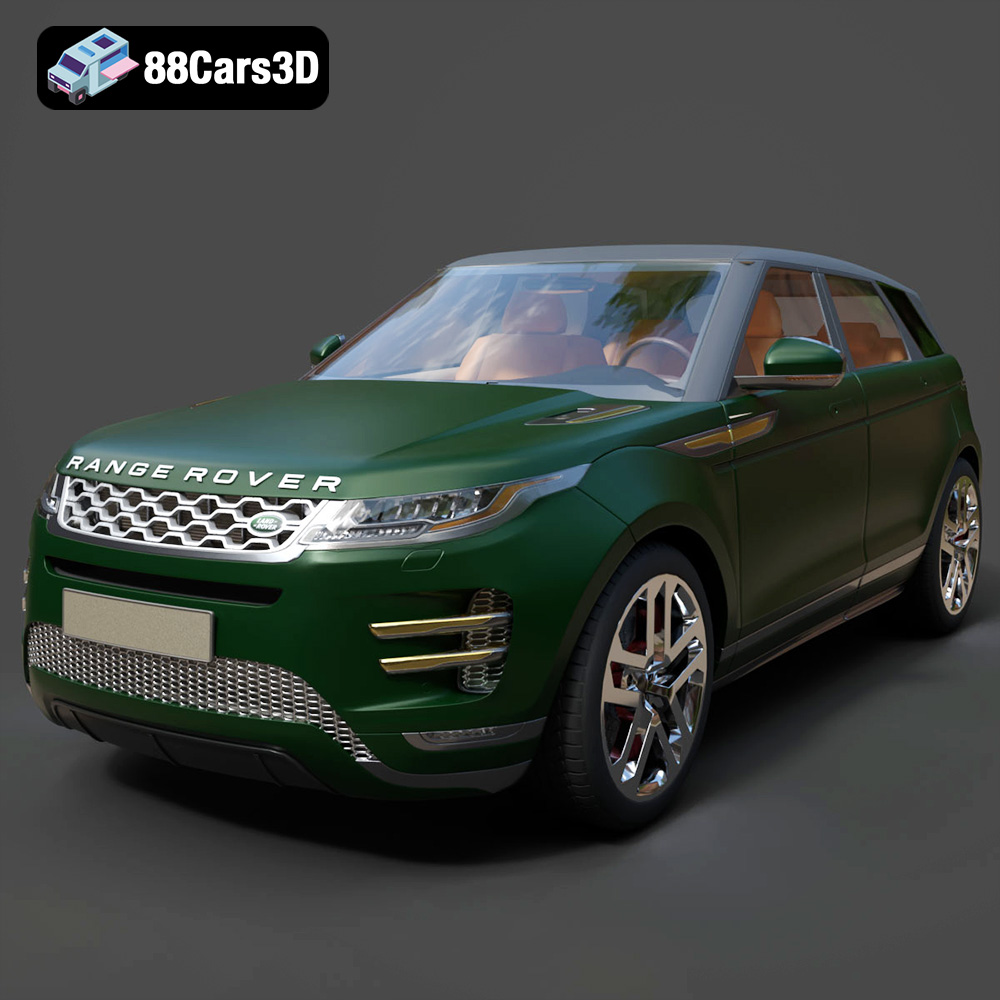
Download the highly detailed, game-ready Range Rover Evoque R-Dynamic 2019 3D Model. Features flush deployable door handles, Matrix LED headlights, and R-Dynamic styling. Includes .blend, .fbx, .obj, .glb, .stl, .ply, .unreal, and .max formats for game development, AR/VR, and rendering.
Price: $19.99

Texture: Yes | Material: Yes
Download the highly detailed, game-ready Ford Mustang Mach 40 3D Model. Features aggressive custom widebody styling, a mid-mounted V8 engine, and classic retro-futuristic design. Includes .blend, .fbx, .obj, .glb, .stl, .ply, .unreal, and .max formats for game development, AR/VR, and rendering.
Price: $19.99
Texture: Yes | Material: Yes
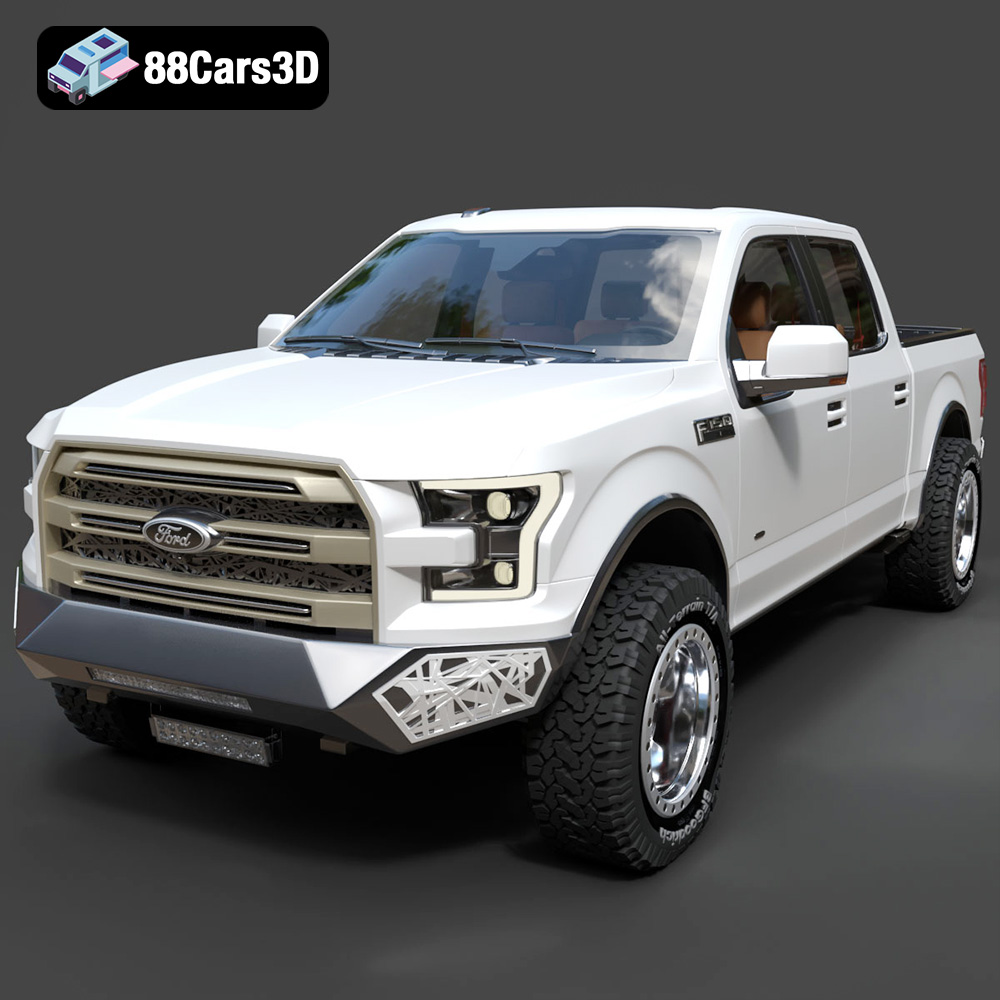
Download the highly detailed, game-ready Ford F150 Raptor With Tuning From ARE 3D Model. Features custom ARE tuning accessories, aggressive off-road suspension, and rugged beadlock wheels. Includes .blend, .fbx, .obj, .glb, .stl, .ply, .unreal, and .max formats for game development, AR/VR, and rendering.
Price: $19.99

Texture: Yes | Material: Yes
Download the highly detailed, game-ready Mercedes-Benz AMG GLE 63 2021 3D Model. Features the iconic Panamericana grille, aggressive aerodynamic body styling, and a meticulously detailed luxurious interior. Includes .blend, .fbx, .obj, .glb, .stl, .ply, .unreal, and .max formats for game development, AR/VR, and rendering.
Price: $19.99
Texture: Yes | Material: Yes
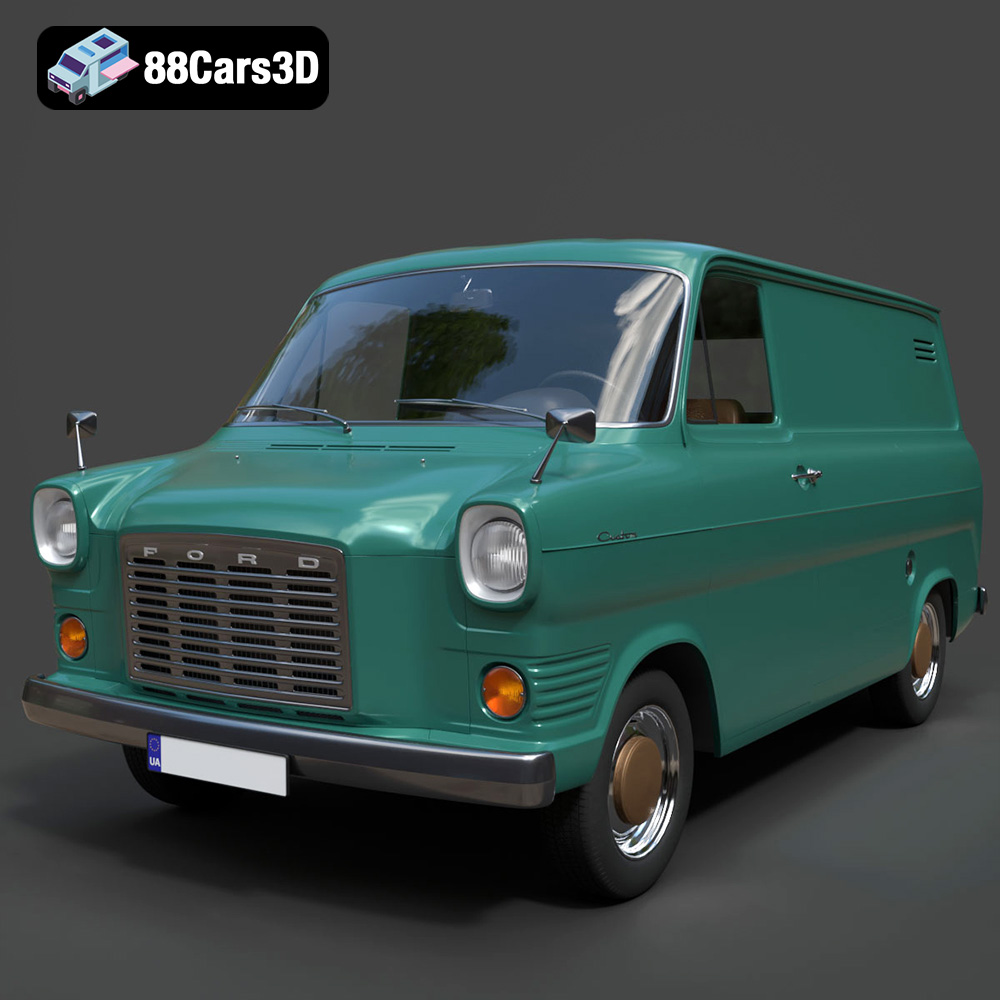
Download the highly detailed, game-ready Ford Transit Mk1 Panel Van 1965 3D Model. Features iconic flat-front styling, vintage steel wheels, and a period-correct cargo bay. Includes .blend, .fbx, .obj, .glb, .stl, .ply, .unreal, and .max formats for game development, AR/VR, and rendering.
Price: $19.99
Texture: Yes | Material: Yes
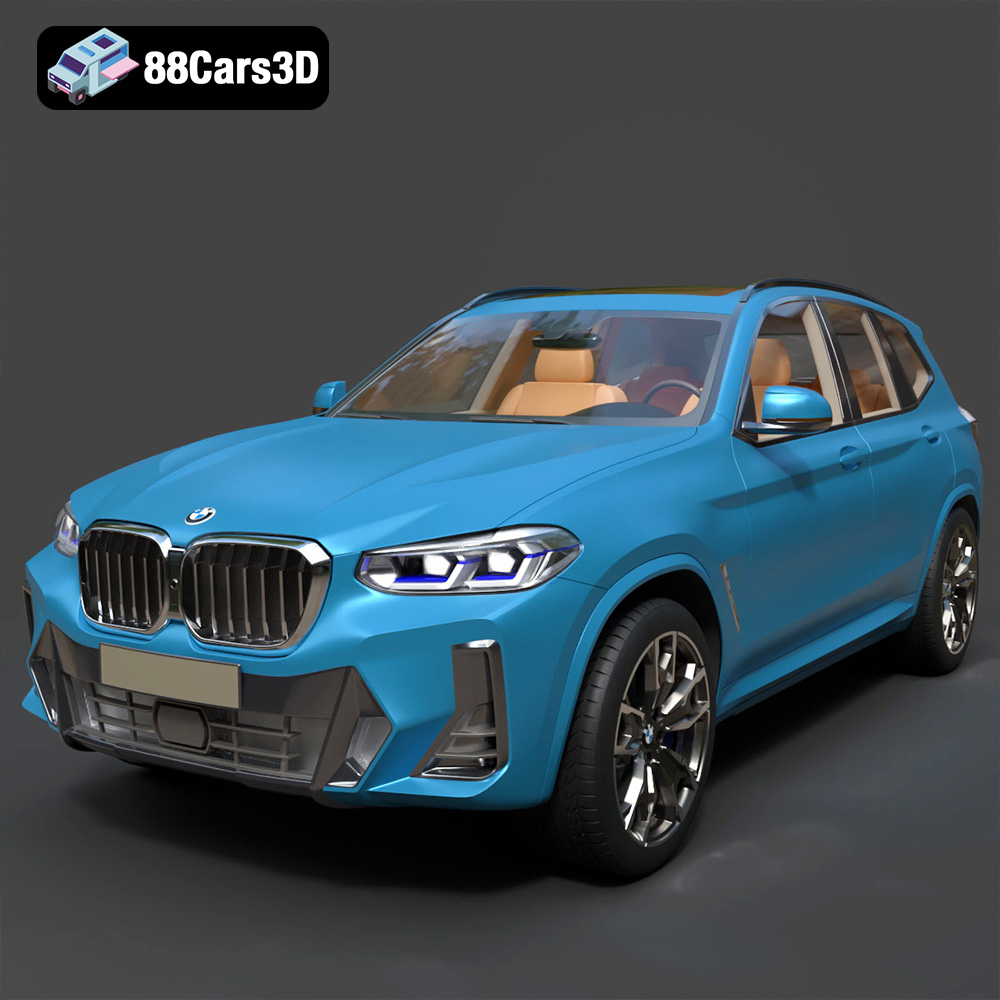
Download the highly detailed, game-ready BMW X3 2024 3D Model. Features the iconic kidney grille, dynamic SUV proportions, and precise lighting elements. Includes .blend, .fbx, .obj, .glb, .stl, .ply, .unreal, and .max formats for game development, AR/VR, and rendering.
Price: $19.99

Texture: Yes | Material: Yes
Download the highly detailed, game-ready Tesla Model S Plaid 2021 3D Model. Features sleek aerodynamic styling, signature LED lighting, and the revolutionary Yoke steering interior. Includes .blend, .fbx, .obj, .glb, .stl, .ply, .unreal, and .max formats for game development, AR/VR, and rendering.
Price: $19.99
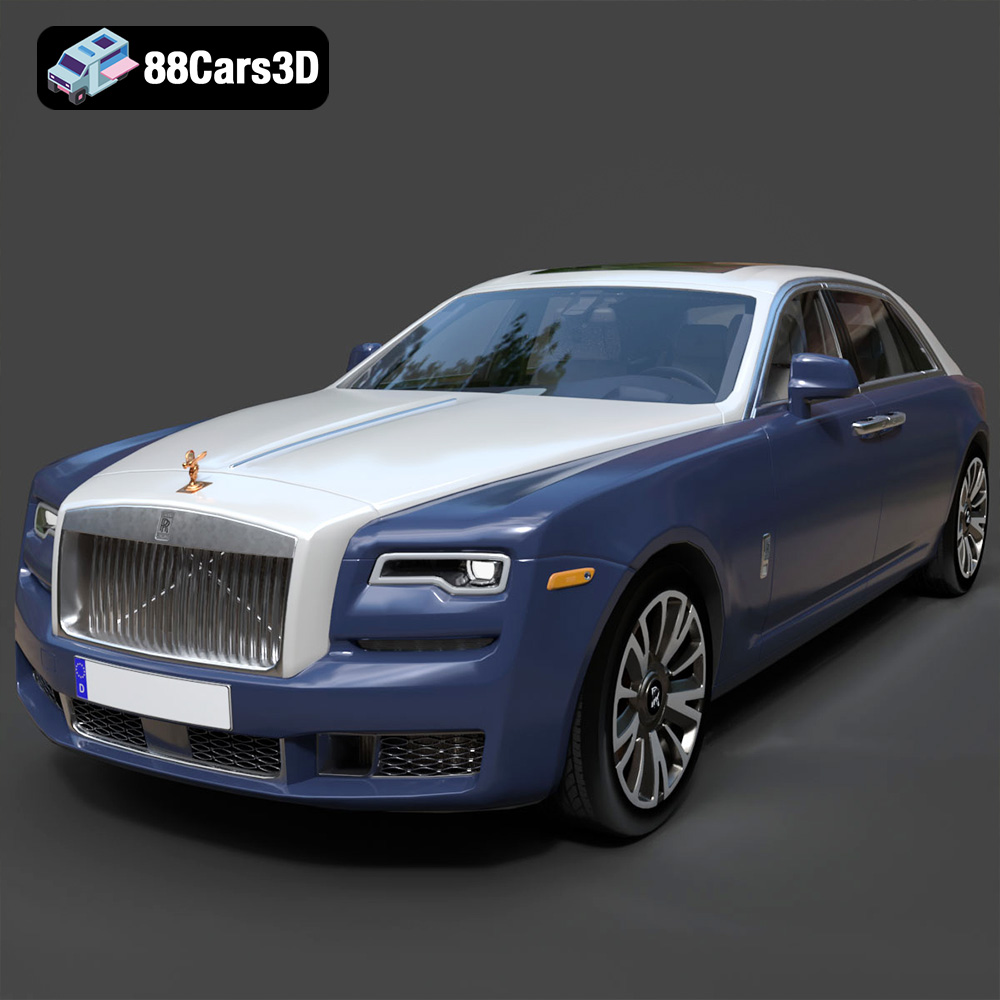
Texture: Yes | Material: Yes
Download the highly detailed, game-ready Rolls-Royce Ghost EWB 2018 3D Model. Features the iconic Pantheon grille, elongated luxury chassis, and elegant exterior lines. Includes .blend, .fbx, .obj, .glb, .stl, .ply, .unreal, and .max formats for game development, AR/VR, and rendering.
Price: $19.99
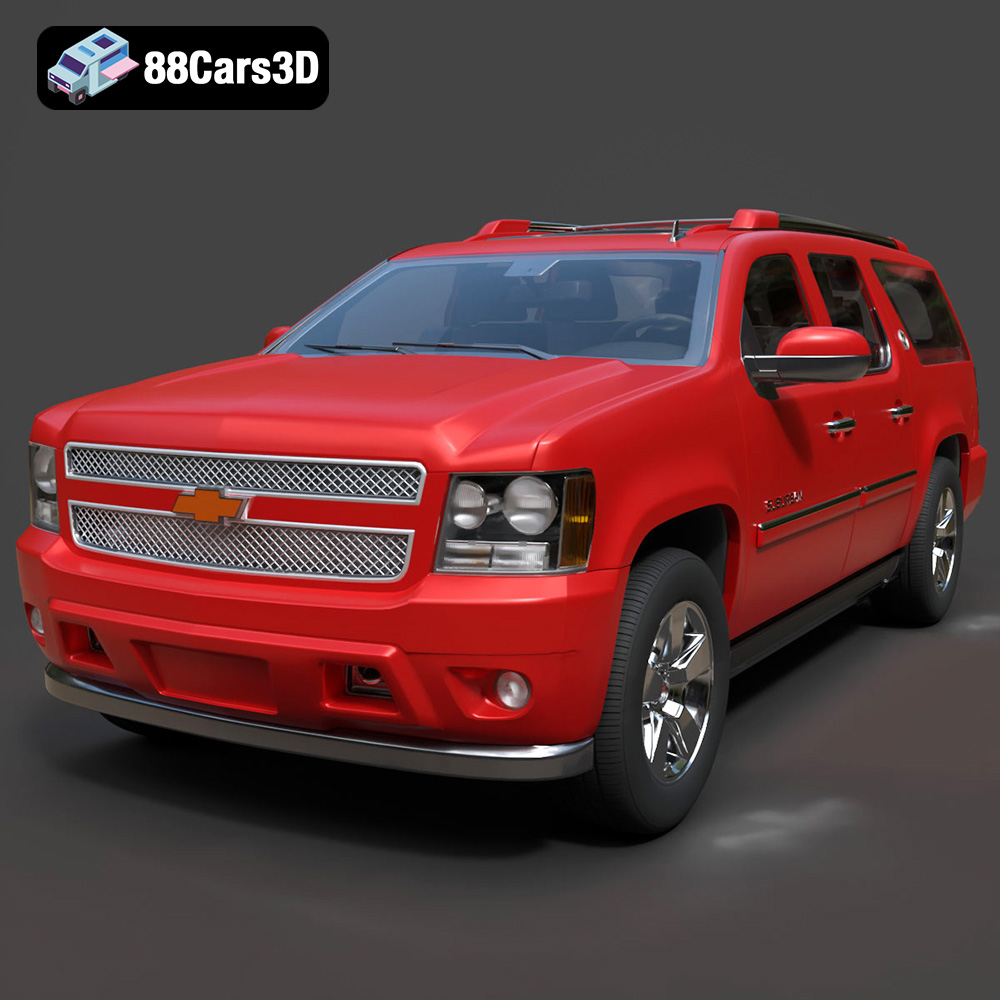
Texture: Yes | Material: Yes
Download the highly detailed, game-ready Chevrolet Suburban 75th Diamond 3D Model. Features the iconic Diamond Edition styling, detailed interior, and accurate full-size SUV proportions. Includes .blend, .fbx, .obj, .glb, .stl, .ply, .unreal, and .max formats for game development, AR/VR, and rendering.
Price: $19.99

